Installation & Setup
Step 1: Install the Extension
- Go to the VocabAI Chrome Web Store page.
- Click the blue Add to Chrome button.
- Confirm by clicking Add extension in the browser popup.
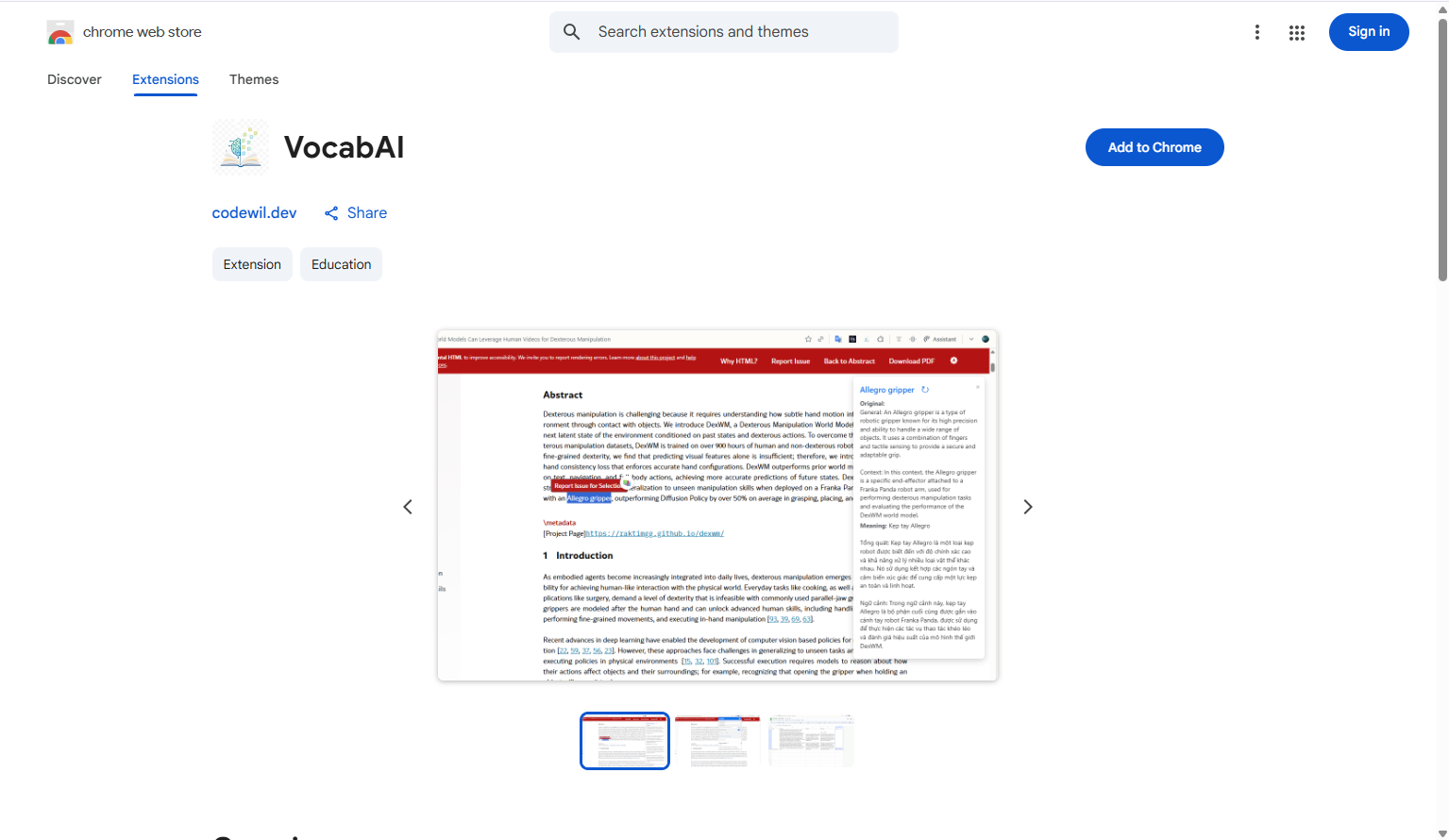
VocabAI Chrome Web Store page
Step 2: Pin the Extension
To make VocabAI easy to access, you should pin it to your toolbar.
- Click the Puzzle Piece icon in the top-right corner.
- Find VocabAI in the list.
- Click the Pin icon so it turns blue.
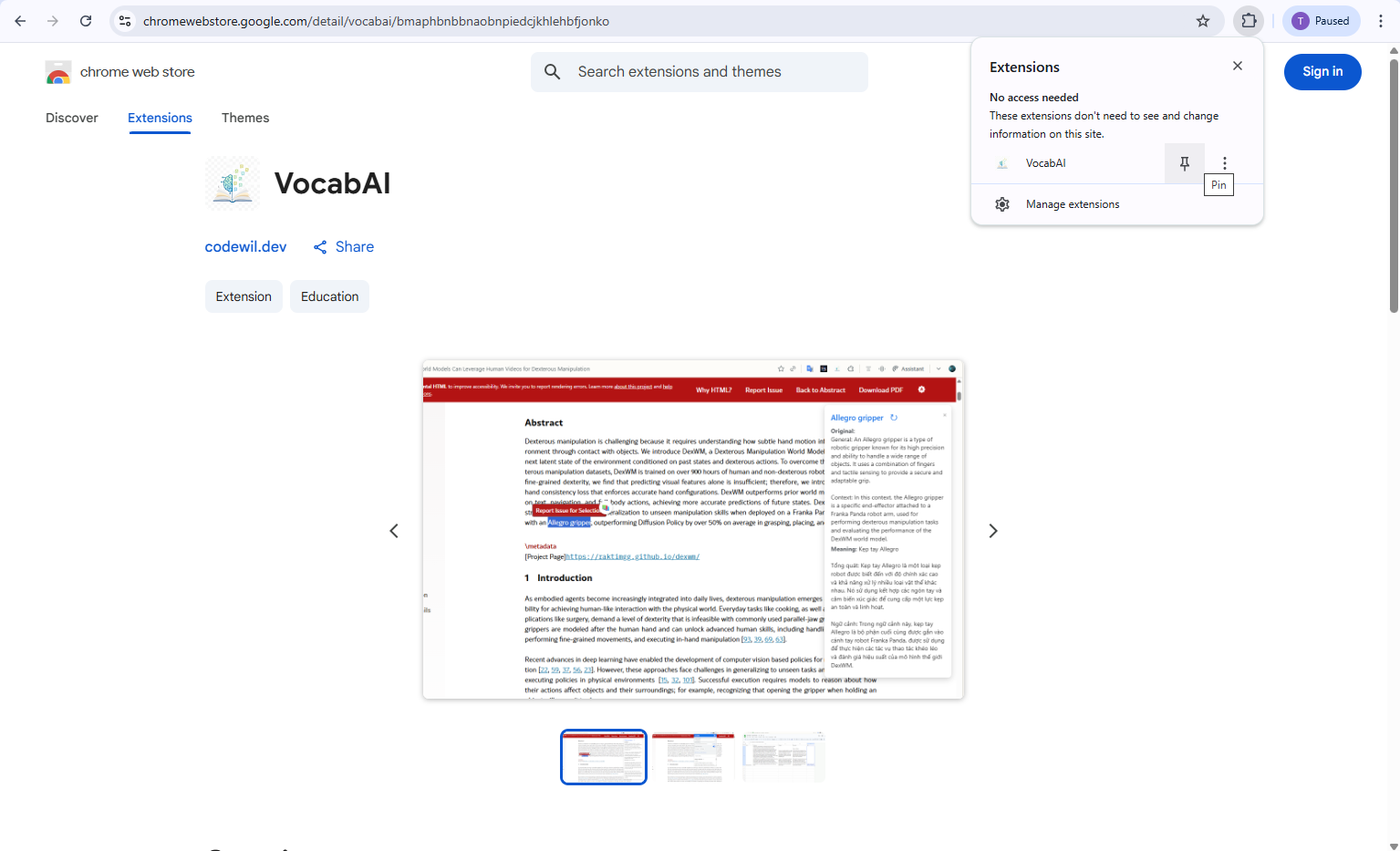
The Chrome extensions menu showing the "Pin" icon next to VocabAI
Step 3: Connect your AI Key
VocabAI uses Google Gemini to provide smart explanations. It's free and takes seconds to set up.
- Click the VocabAI icon to open the popup.
- Click "Get Key" (or visit Google AI Studio).
- Click Create API key and copy the generated code.
- Paste the code into the VocabAI popup and save.
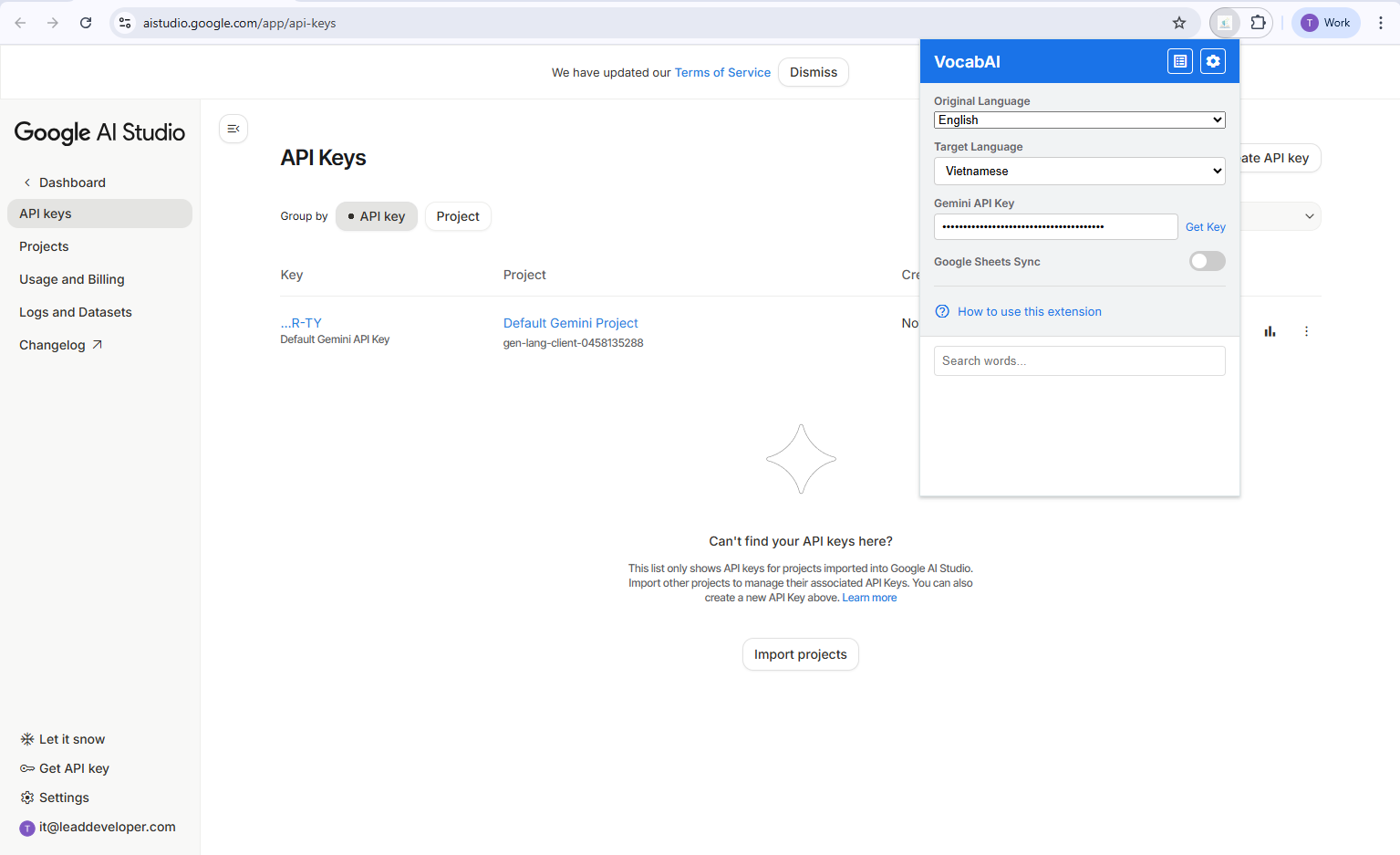
The VocabAI popup showing the input field for the API Key
Learning New Words
Once set up, VocabAI integrates seamlessly into your browsing experience.
Step 1: Highlight a Word
- Go to any website and highlight a word or phrase.
- A small VocabAI Button will appear next to your selection.
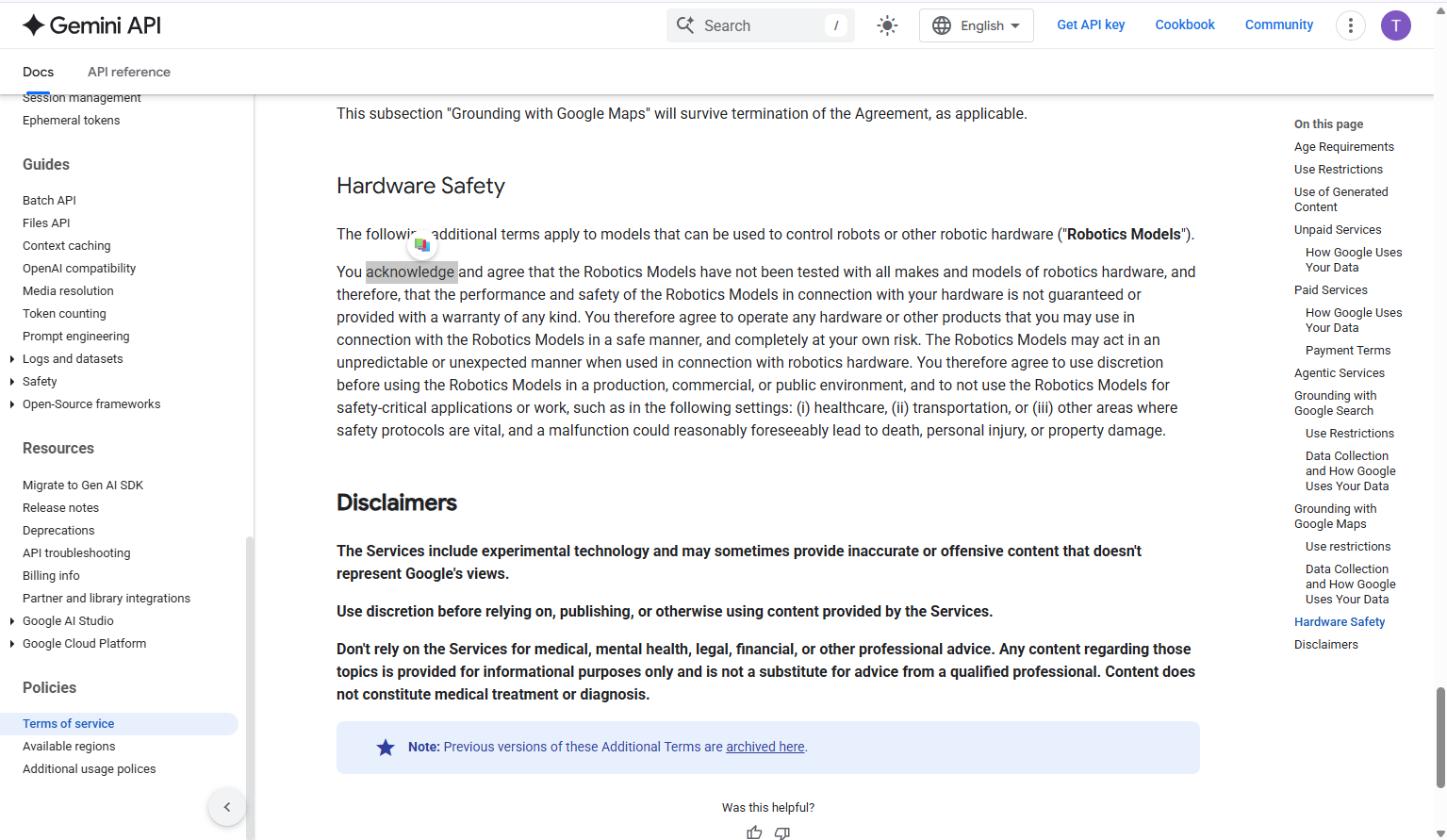
Floating VocabAI button appearing next to highlighted text
Step 2: See the Explanation
- Click the VocabAI Button to open the explanation modal.
- You will see:
- Original: Deep context and usage for this specific sentence.
- Meaning: Direct translation in your target language.
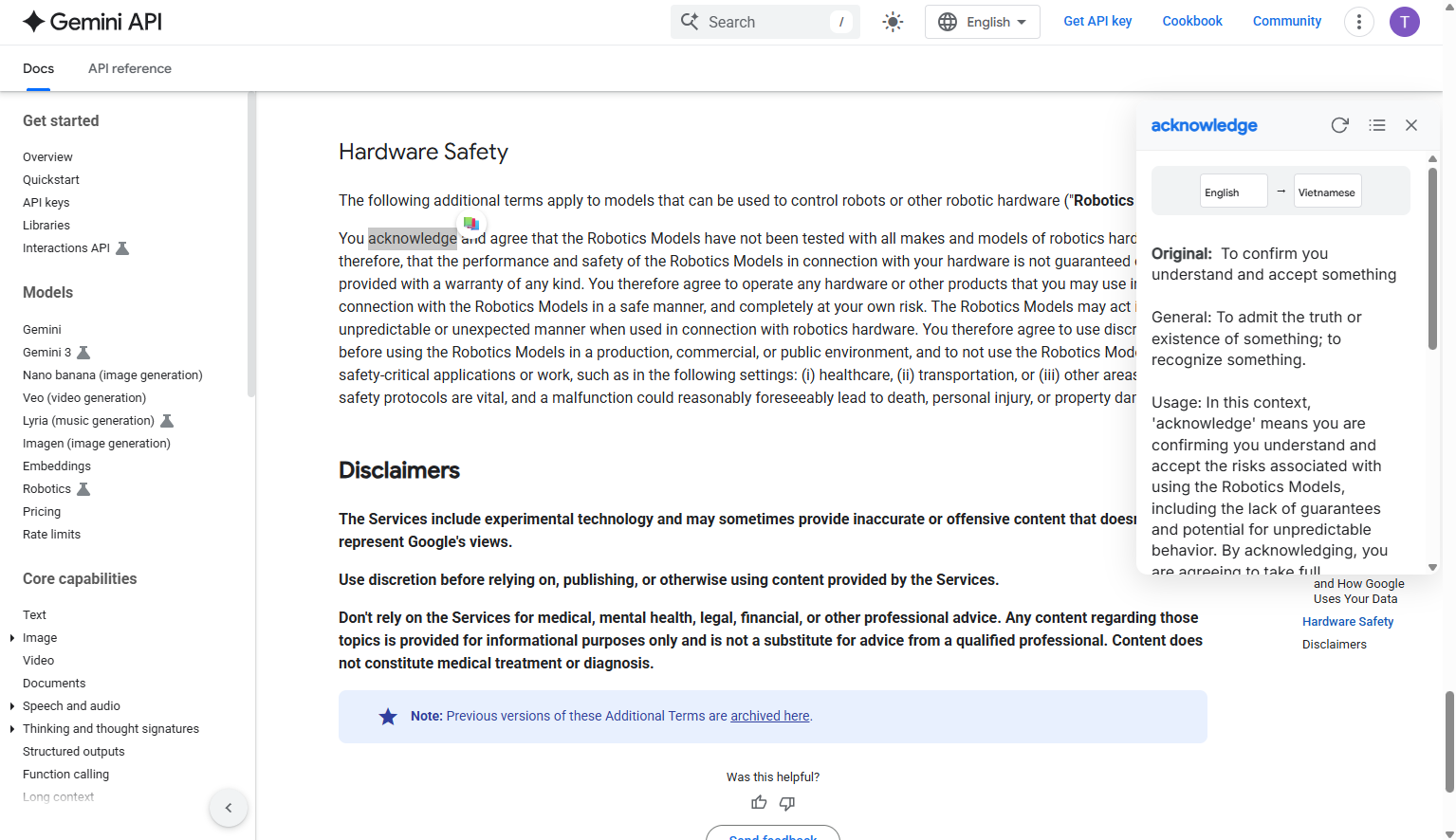
The explanation modal showing context-aware definitions
Step 3: Change Languages
Need a different translation? Use the dropdowns in the modal to switch languages on the fly.
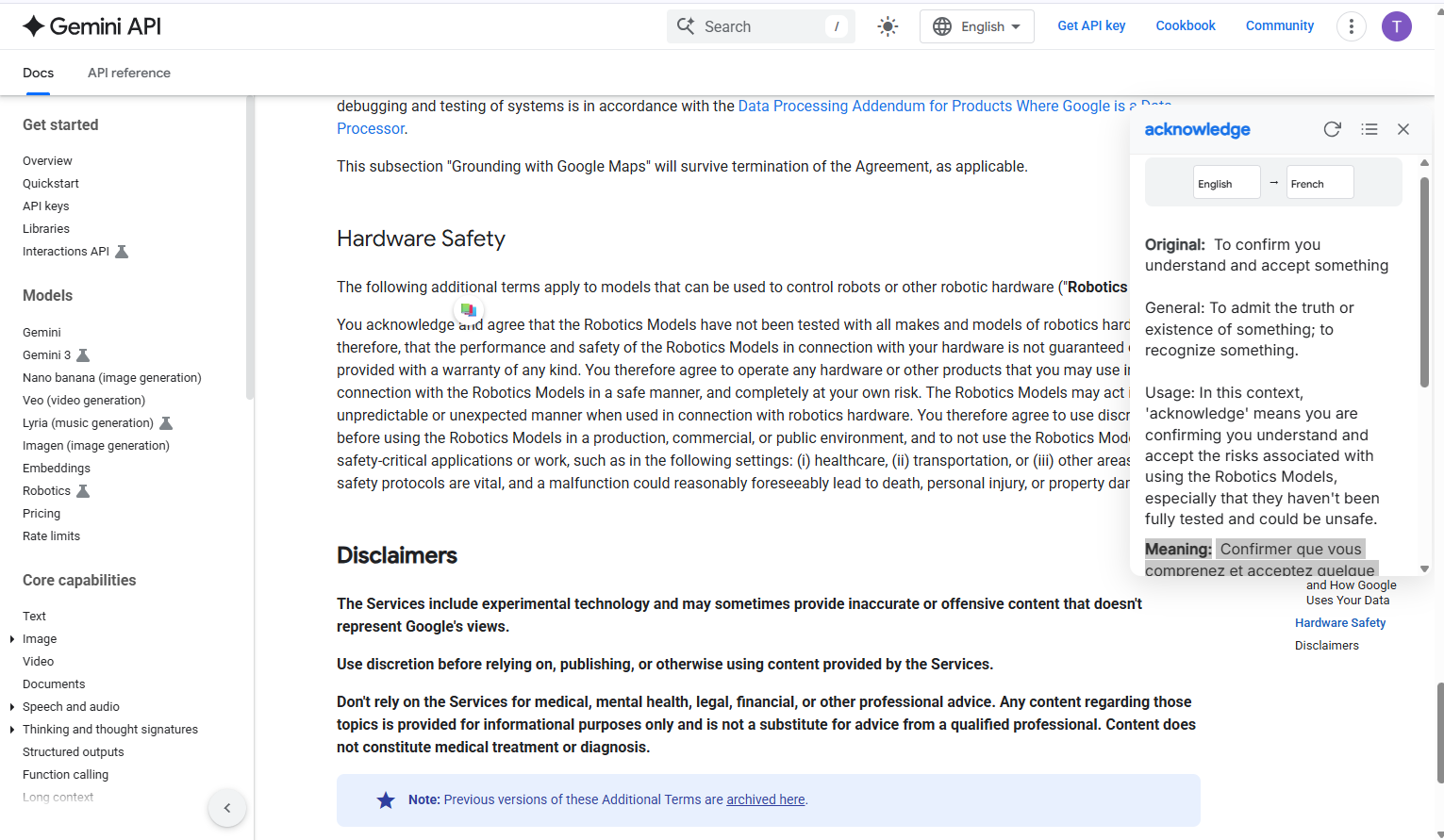
Language selectors and refresh button inside the modal
Reviewing & Managing
Your personal dictionary is always just a click away.
Step 1: Open the Dashboard
Click the VocabAI icon in your toolbar to see your saved words.
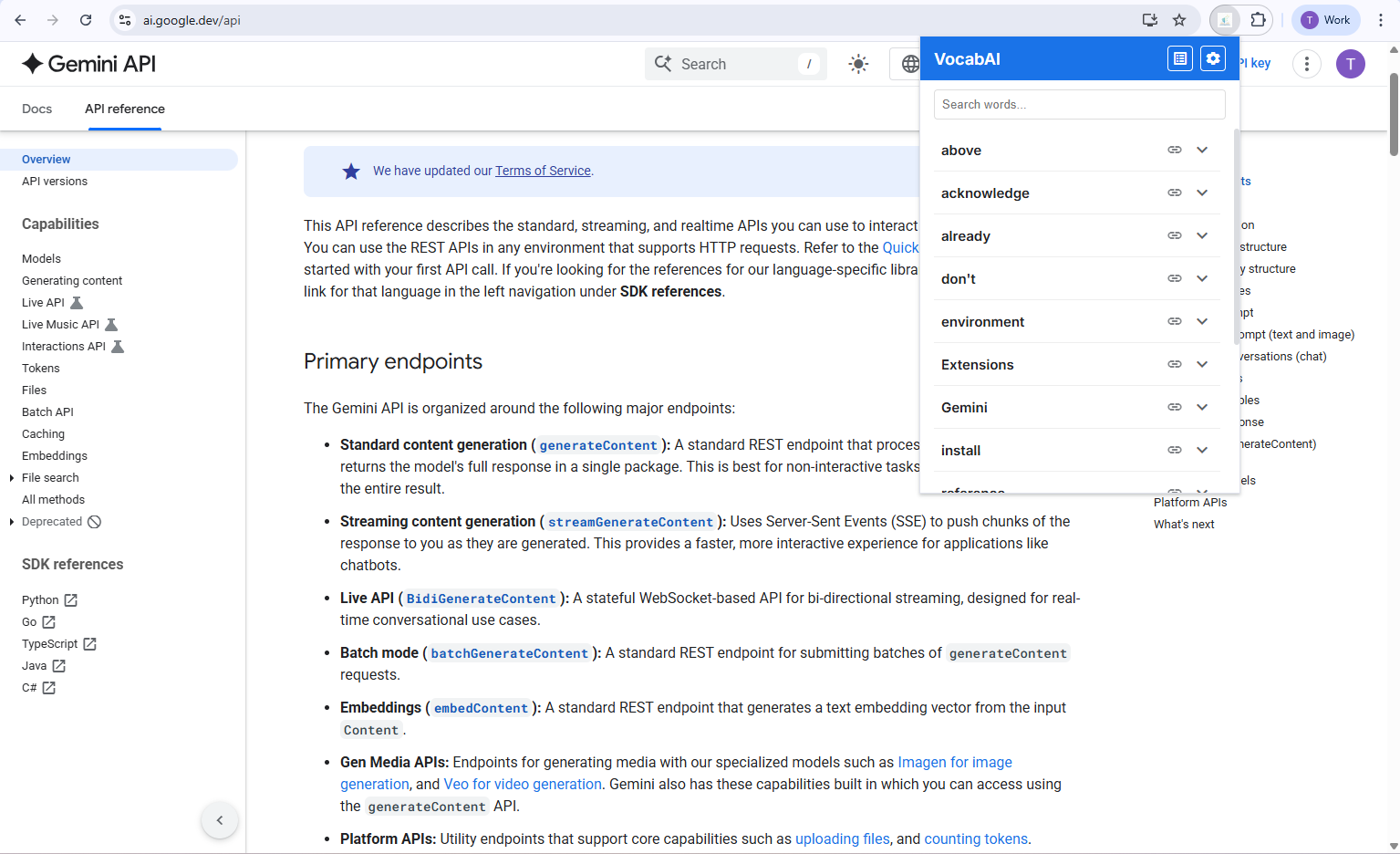
The main library view in the extension popup
Step 2: Edit or Delete
- Click a card to Expand it.
- Use Edit to tweak meanings or Delete to remove entries.
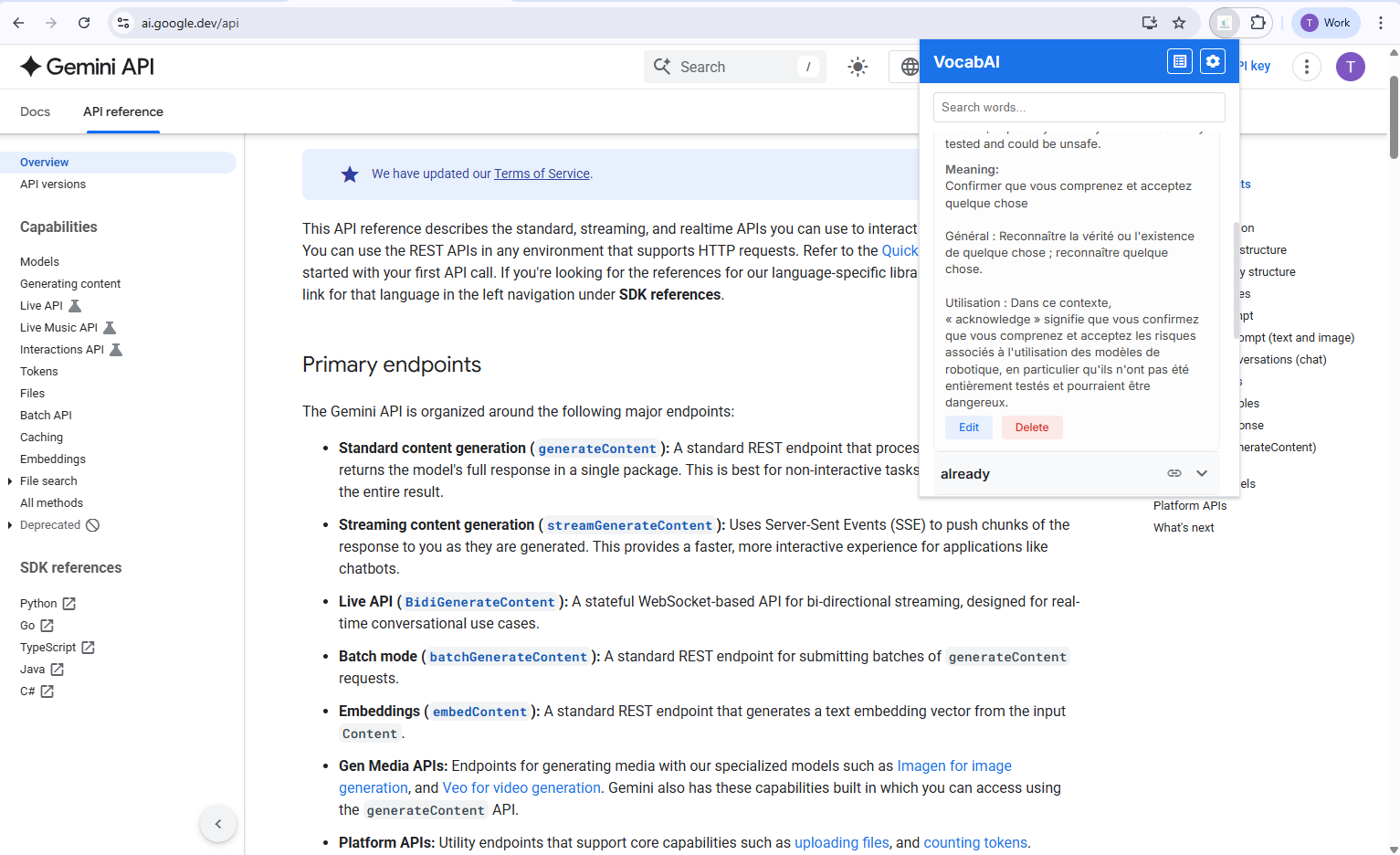
Word card in edit mode with custom notes
Step 3: Context Link
Click the Link icon to jump back to the exact page where you found the word.
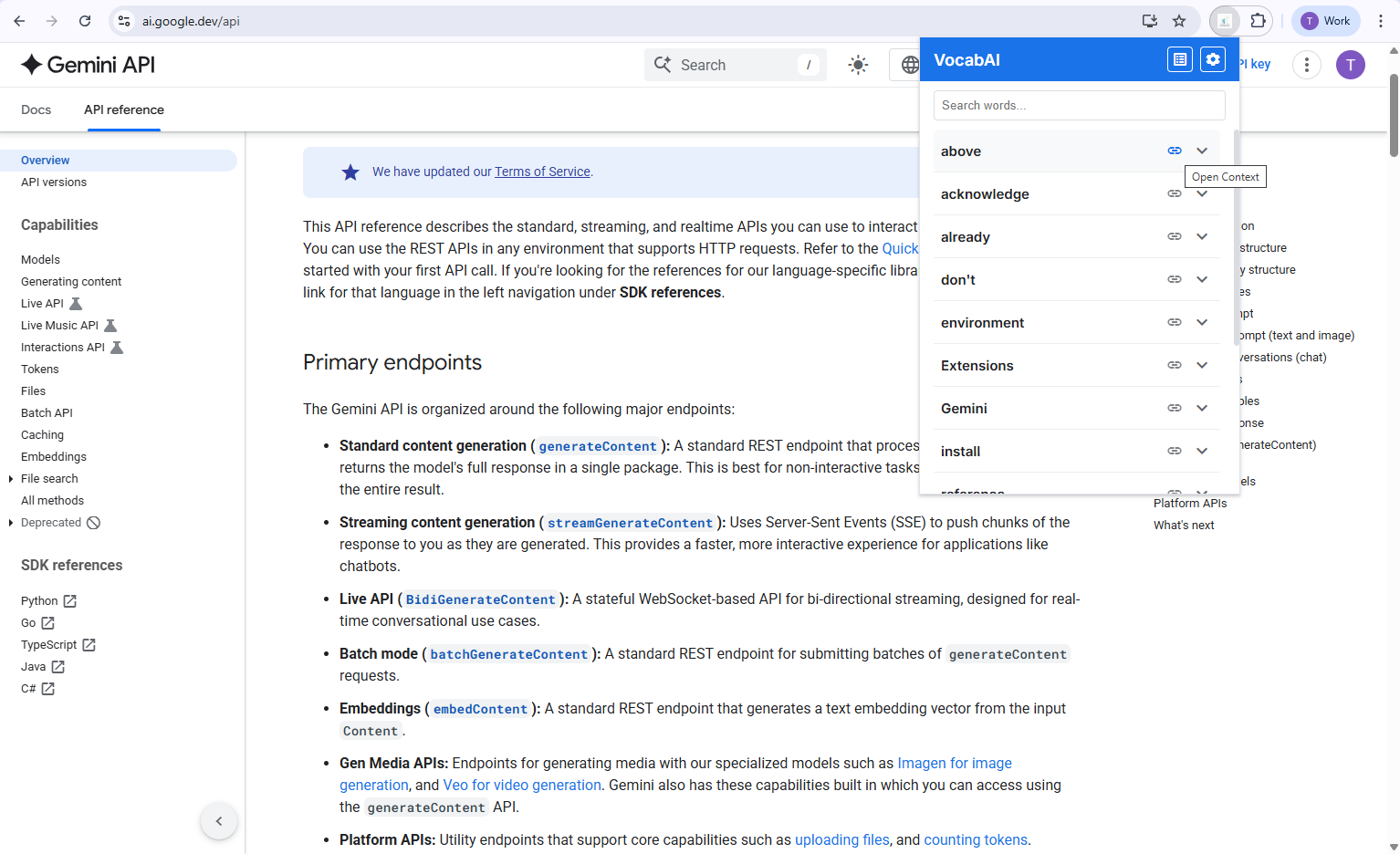
Quick link to revisit the original context
Step 4: View All Words of Current Page
- To see only the words you've saved from the page you are currently viewing:
- From Popup: Click the List icon in the top-right header.
- From Modal: Click the List icon in the modal's header.
- A list will appear showing only the words from the current URL.
- Click any word in this list to see its full explanation again.
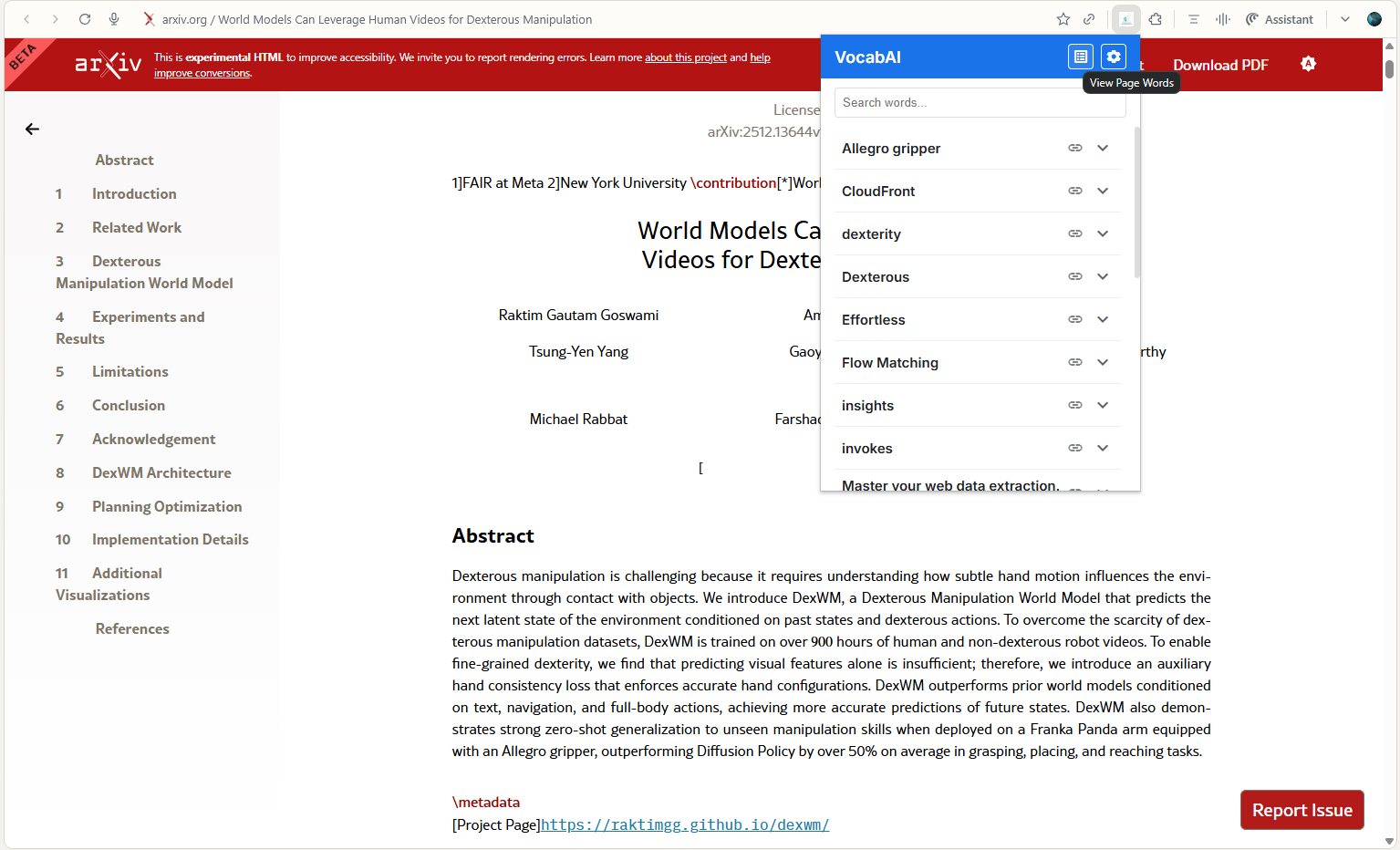
The List icon in the extension popup
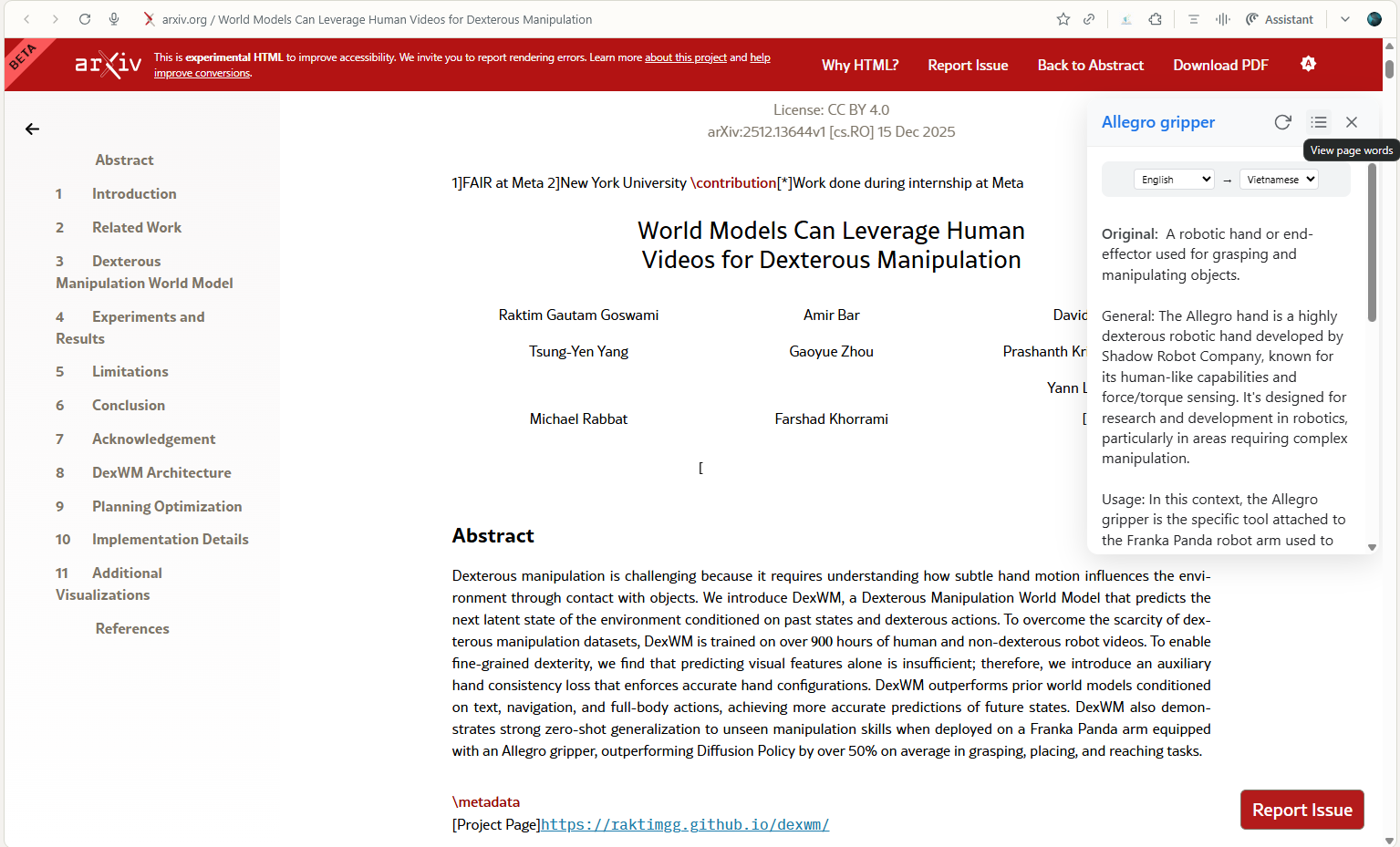
The List icon in the floating modal
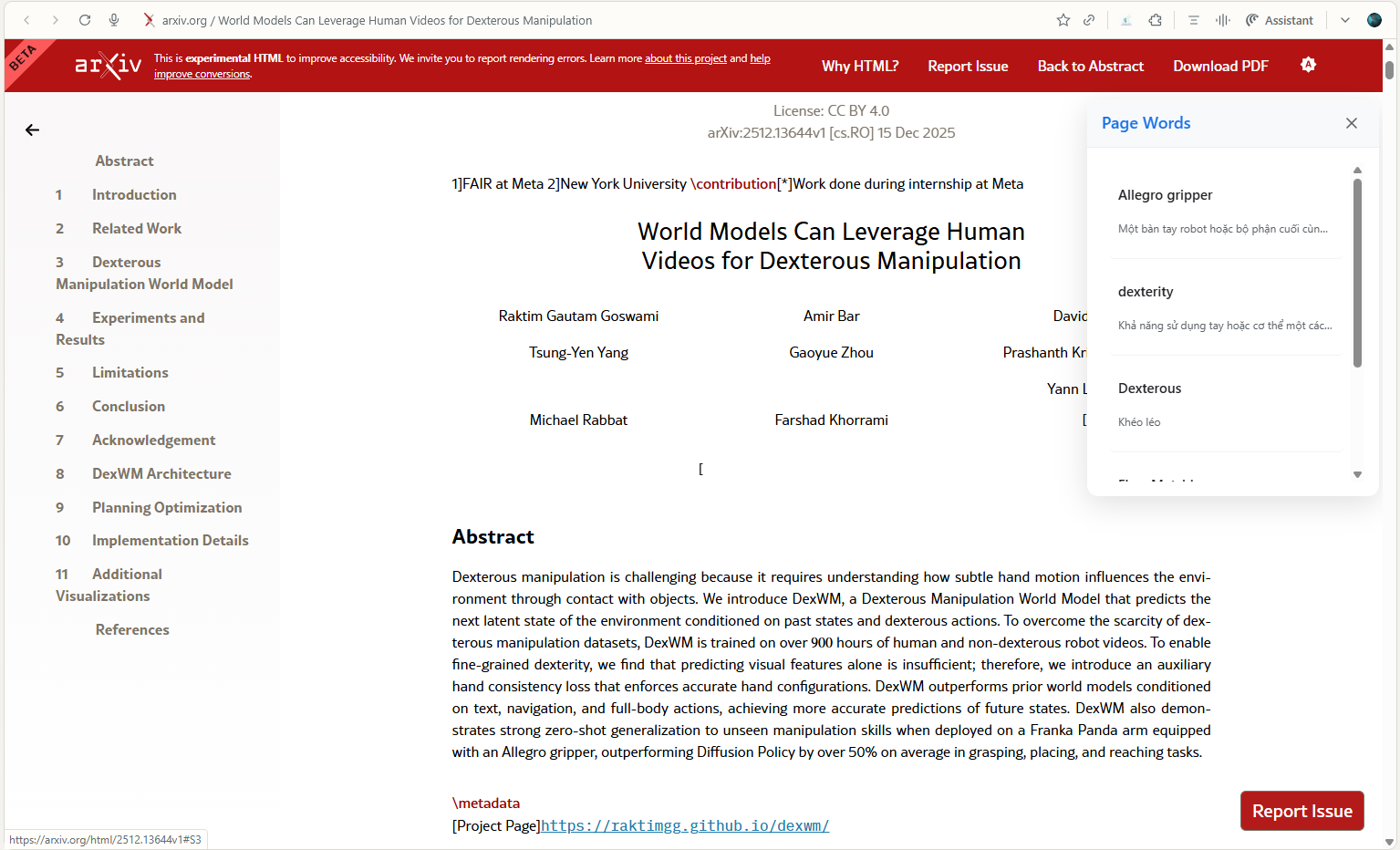
The "Page Words" list being displayed over the current website
Google Sheets Sync
Never lose a word. Sync everything to a permanent spreadsheet.
- Open the VocabAI popup and go to settings.
- Toggle Google Sheets Sync to ON.
- A spreadsheet named "VocabAI - My Words" will be created in your Drive.
- All future saves and edits will sync automatically!
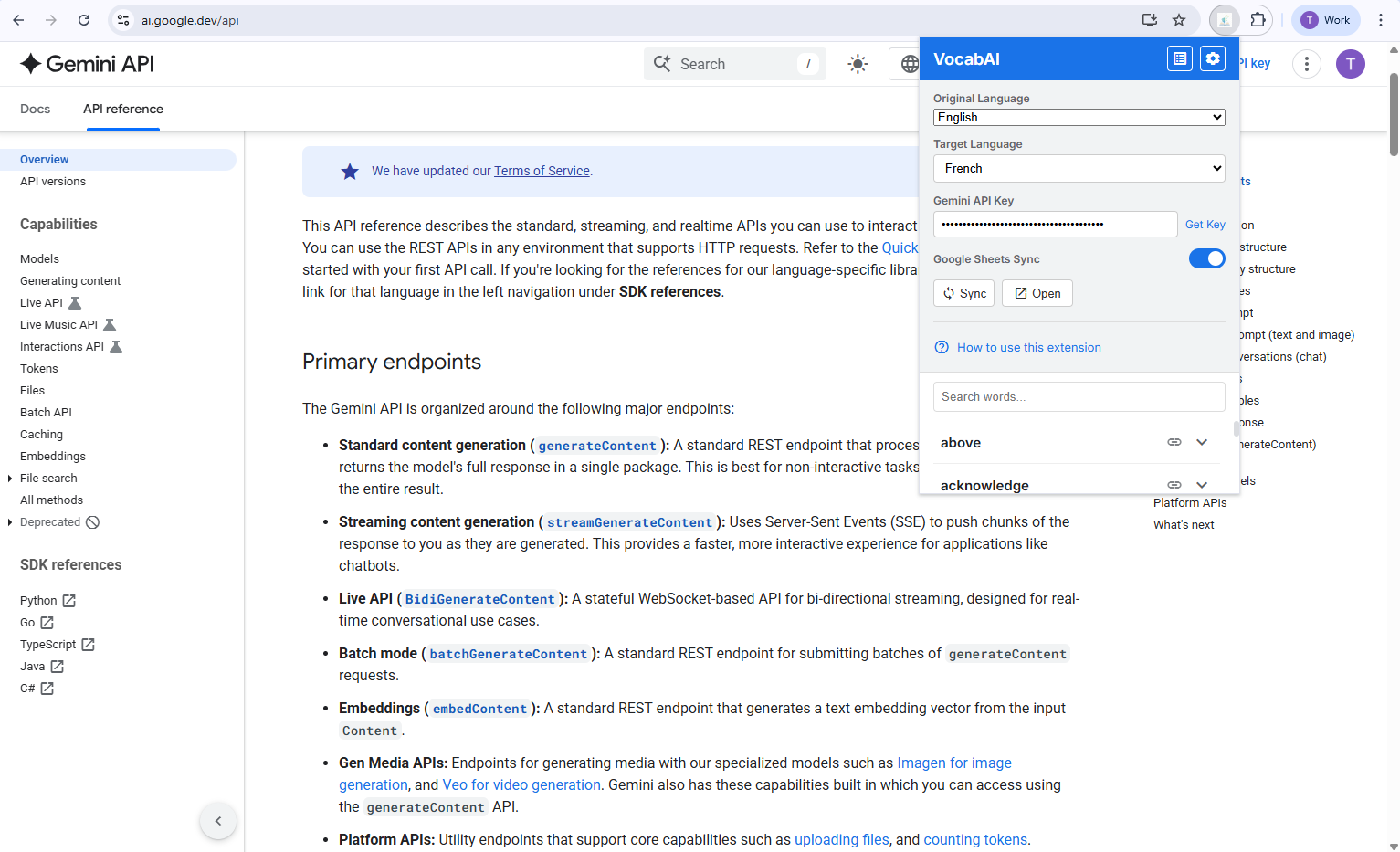
The Google Sheets synchronization toggle